
Beard Remover Filter: Remove the Beard, Keep the Mustache
Use a beard remover filter to keep your existing mustache. Write a selective edit request, check the upper lip, and spot invented skin or jaw details.
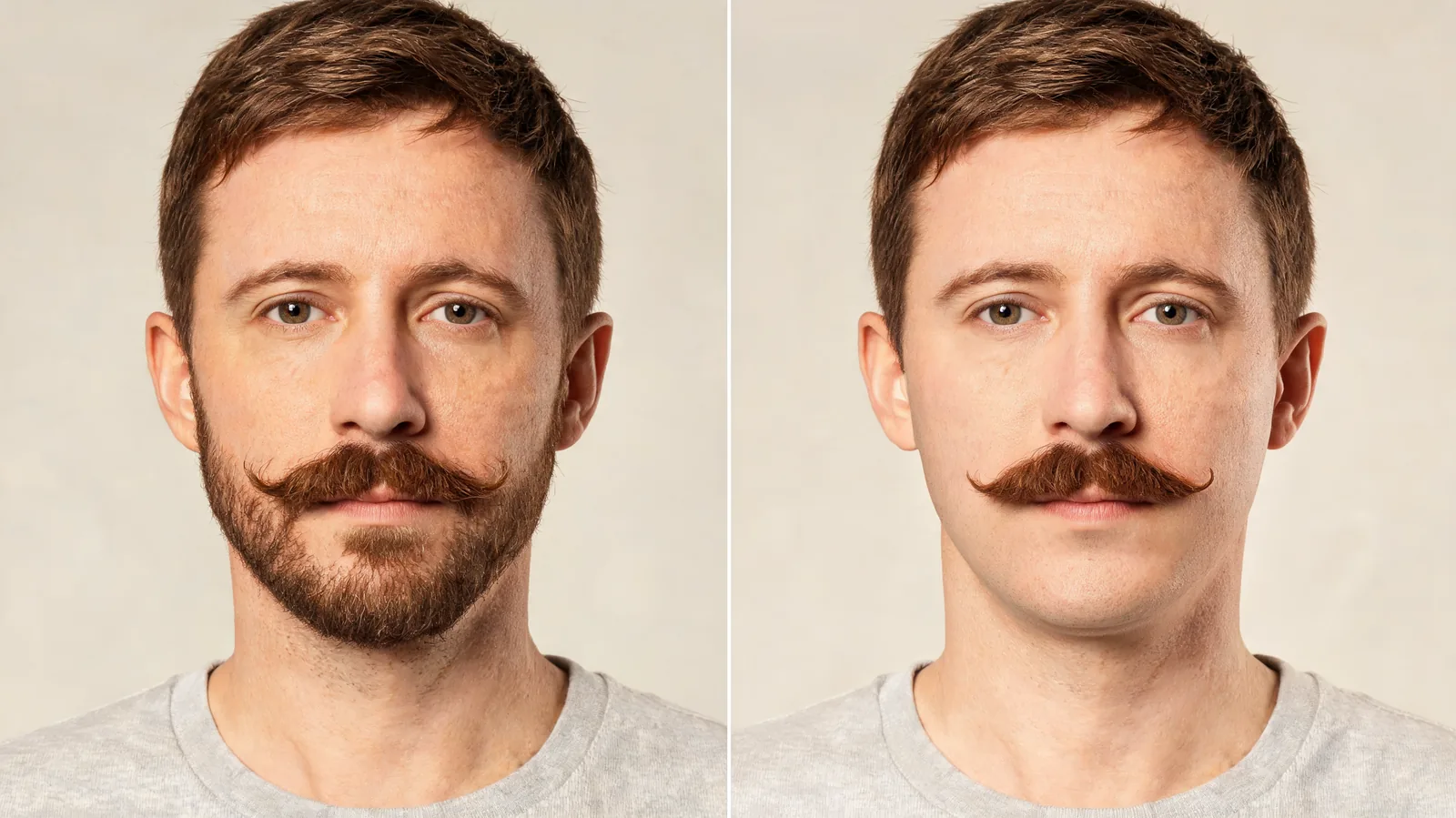
To use a beard remover filter while keeping your mustache, replace the default full-shave request with a selective edit: remove hair from the cheeks, chin, and jaw, but preserve the existing upper-lip mustache. The AI hairstyle changer accepts custom descriptions. Compare the result with your original; an instruction cannot guarantee identical details.
Last updated: October 10, 2026 · ~6 min read
The useful comparison is your current beard against a mustache-only version of the same photo. Changing the haircut, expression, or mustache style at the same time makes that decision harder.
AIChangeHair publishes this guide and provides the editor described below. The hero is an illustrative comparison, not a record of a real shave or a measured product result.
How do you remove the beard and keep the mustache in three steps?
- Choose an original portrait. Use even light, a relaxed mouth, and a clear view of the entire beard and mustache. Keep an untouched copy for comparison.
- Replace the removal instruction. Open the no beard filter, use Describe, and replace the full-shave wording with the selective request below. Check the whole description before generating. Sign in and use available credits when prompted.
- Inspect the saved preview. Compare the upper lip first, then check the cleared cheeks, chin, and jaw. Download an acceptable result and reopen it at full size before deciding whether to shave.
Do not begin with a portrait that has already had its mustache removed. Asking an editor to add it back creates another interpretation rather than preserving the original visible hair.
What should you write in the custom description?
Start with a short instruction that names what changes and what stays:
Remove the beard and stubble from my cheeks, chin, and jaw. Keep my existing upper-lip mustache, including its shape, color, and thickness. Keep my scalp hair, eyebrows, expression, face shape, lighting, and background unchanged. Preserve natural skin texture.
This is a request to guide the edit, not a promise about the output. Read the default description first: leaving “remove all facial hair” alongside “keep my mustache” gives conflicting directions. Replace the unwanted sentence rather than appending a correction below it.
Avoid “clean-shaven face” if you mean mustache only. That phrase can reasonably include shaving the upper lip. Likewise, “give me a mustache” asks for a new style. The important wording here is keep my existing mustache.
If your beard connects to the mustache at the corners of your mouth, specify the boundary. For example: “Keep the hair above my upper lip; remove the beard connections below the mouth corners.” If you have a horseshoe mustache with downward extensions, say whether those extensions should remain. The editor cannot know which outline you intend from the word “mustache” alone.
Which facial hair should stay in the preview?
Decide that before generating. A mustache-only look, a goatee, and a full shave answer different questions.
| Intended result | Hair to retain | Hair to remove | Wording to avoid |
|---|---|---|---|
| Existing mustache only | Current upper-lip hair | Cheeks, chin, jaw, and unwanted connections | “Remove all facial hair” |
| Mustache with a soul patch | Upper lip and the small patch below the lower lip | Remaining beard areas | “Clear the entire chin area” without an exception |
| Existing horseshoe mustache | Upper lip and specified downward extensions | Beard outside that outline | An undefined “keep the mustache” |
| Full clean shave | No beard or mustache | All facial hair | “Keep upper-lip hair” |
If chin hair is part of your intended result, the goatee filter describes a different styling task. Do not judge a mustache-only preview as a failed goatee preview, or vice versa.
You can also compare a new upper-lip style with the mustache filter. Keep that experiment separate from retaining your current mustache: otherwise you will not know whether your preference comes from beard removal or the new mustache shape.
What photo makes selective removal easier to judge?
Use a recent front-facing portrait with both mouth corners visible. A slight turn can work, but a strong profile hides one side of the mustache and beard boundary. Avoid a hand over your chin, a scarf at the jaw, or a crop that cuts off the beard.
Look for detail in the upper-lip hair. If it merges into a dark shadow, you will struggle to tell whether the output retained the same outline. Softer light from in front of you is more useful than bright overhead light that leaves the mouth in shadow.
Keep the expression neutral. A wide smile stretches the mouth corners; a pursed mouth changes the visible lip boundary. Those photos are fine for playful edits, but a relaxed portrait makes the retained shape easier to compare.
Use a supported JPEG, PNG, or WebP under the studio's displayed upload limit; the current limit is 8 MB. If your phone provides another format and the upload fails, make a genuine converted copy. Renaming the extension does not convert the file.
How do you check that the mustache stayed the same?
Open the original and result at similar sizes. Check the features you can actually see in both images before judging the newly generated beard area.
- Outline: Are both ends the same length? Has a chevron become narrower or a handlebar lost its curls?
- Density and color: Did dark hair become lighter, or did a thin area become uniformly thick?
- Lip boundary: Is the original lip still visible, without a smear or a new shadow?
- Symmetry: Did one side disappear where the beard connected to it?
- Other features: Are the eyebrows, nose, ears, scalp hair, and expression still consistent with the original?
A small change can matter if it changes the style you are trying to assess. If the mustache is different, save the result only as a general illustration, or retry from the original with a clearer preservation request. Do not treat an attractive new mustache as evidence that your existing one will look that way.
Why can the skin or jaw look different after removal?
The photo records the beard, not a clear view of everything beneath it. Removing dense hair leaves areas that need replacement content. Adobe's Generative Remove documentation describes a related editing principle: a generative removal tool produces a fill that blends with the surrounding image. That explains the general limitation; it does not establish that AIChangeHair uses Adobe's tool.
For a beard portrait, the practical consequence is that the cleared chin and cheeks are a plausible interpretation. A preview cannot recover a hidden mole, scar, or exact skin texture that the input never showed. Treat a newly sharper jaw or unusually smooth skin with the same caution.
Use the image to compare the overall balance of a mustache-only look. Use an actual shave, or a recent photograph without the beard, to know the real underlying appearance.
An older beard-free photo can help you spot a very unlikely contour, but age, pose, and lighting may differ. It is a reference, not a reason to expect the editor to match it precisely.
What should you do when the edit misses the target?
| Problem | Useful next action |
|---|---|
| Mustache is gone | Remove full-shave language and retry from the original |
| Beard connections remain | Name the mouth-corner areas that should be cleared |
| Dark patches remain on the jaw | Clarify that stubble is also unwanted; check whether the input has a shadow |
| Mustache shape changes | Ask to retain its existing outline and density; choose a clearer input if needed |
| Chin is dramatically reshaped | Reject it as a decision preview rather than praising the sharper outline |
Change one instruction at a time so you can see what helped. Repeatedly editing the generated version can carry earlier distortions into the next result. A cleaner starting photo may be more useful than a longer prompt.
Once the preview is useful, compare it beside the original and decide whether you want that overall look. If you share it with a barber or a friend, label it as an edited preview and name the mustache outline you want to retain.
Frequently asked questions
Can I remove my beard but keep my mustache in a photo?
You can request selective beard removal in a photo editor that accepts custom instructions. Name the cheeks, chin, and jaw as the areas to clear, and ask to preserve the existing upper-lip mustache. Inspect the result because preservation is not guaranteed.
Why did the beard remover filter erase my mustache?
A default clean-shaven instruction may remove all facial hair. Replace it with a selective request that explicitly keeps the original mustache, and generate again from the original portrait rather than the version where the mustache is missing.
Will a no beard filter show my real jawline?
It can suggest an appearance, but dense beard hair hides information about the skin and contour underneath. The editor generates those areas. Use the preview to compare the overall look, not as proof of your exact jawline after shaving.
Should I use a mustache filter after removing my beard?
If your goal is to retain your actual mustache, first try one selective edit from the original portrait. Adding a mustache afterward may produce a different shape, density, or color. Use a separate mustache filter when you want to explore a new style.
Related guides
- Try the AI hairstyle changer →
- Clean shaven filter guide — compare removing all facial hair.
- Mustache filter guide — explore a different upper-lip style.
- Beard filter guide — compare facial-hair styles in a separate edit.
Try a selective beard-removal preview
Keep your original portrait, define the mustache you want to retain, and make one focused request in the AI hairstyle changer.