
iPhone Bald Filter: Save a Full Preview from One Photo
Use an iPhone bald filter in your browser: select one portrait, preserve your beard, check the result, and find the full download in Files.
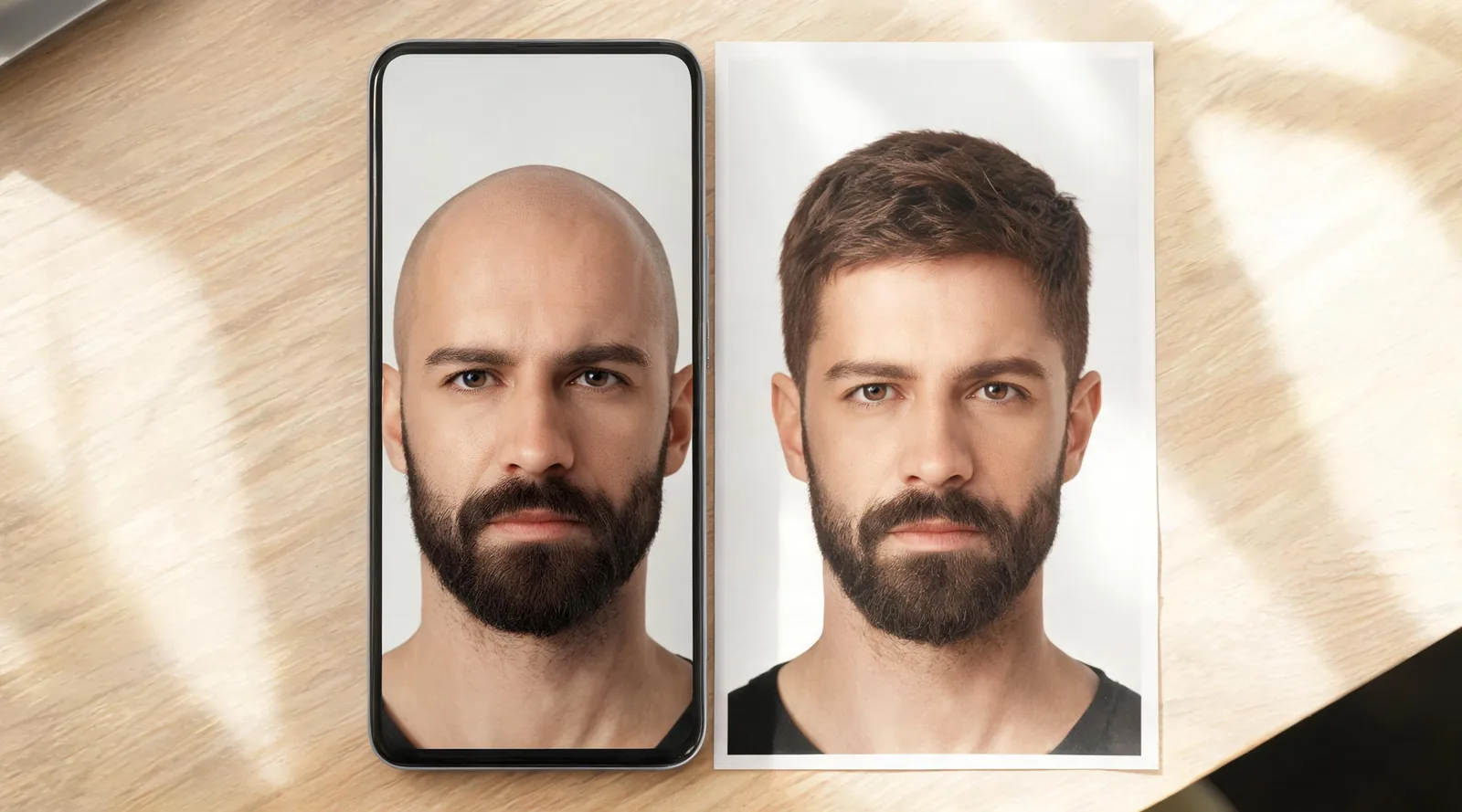
To use an iPhone bald filter, open a browser-based editor, upload one clear portrait, request scalp-hair removal, and download the finished image. Check Safari's downloads and Files before looking in Photos. The AI hairstyle changer works in the browser; a preview estimates the look rather than revealing your hidden scalp shape.
Last updated: October 9, 2026 · ~7 min read
This walkthrough takes you from one original portrait to a full image you can reopen and compare.
AIChangeHair publishes this guide and provides the browser editor described below. Its hero is an illustrative bald-preview comparison, not a photograph documenting a real shave. iPhone menu labels can vary with iOS version, browser, and language; follow the equivalent action if yours looks different.
How do you make and save a bald preview in three steps?
- Prepare one portrait. Choose a sharp, upright picture with your forehead, ears, and upper head visible. Keep a copy of the original. If the upload fails, use a properly converted JPEG, PNG, or WebP rather than assuming an HEIC file will work.
- Make the scalp-hair edit. Open the bald filter in your browser. Tap the portrait upload area, select one photo, and inspect its preview. Choose the bald look, add any preservation instructions, and sign in before generating with available credits.
- Inspect and download the result. Check your face and beard against the original, use Download, and reopen the saved file from Safari's downloads or Files. Move a copy into Photos if you want both pictures there.
Finish the save-and-reopen step before making another preview. A picture displayed on the result screen and a file safely saved on your phone are different things.
Keep the original portrait. It is the reference for facial changes and the starting point for another attempt.
Which iPhone photo should you choose?
Use a picture taken at roughly eye level in even light. Leave space above the head and around the ears. A close crop that cuts off the crown makes the edit harder to judge; the top of the head is the part you are trying to preview.
Remove hats and keep hands away from the forehead. Hair falling over the eyes or a dark shadow across the hairline can blur the boundary between hair and face. Heavy beauty filters can make it difficult to tell whether the editor changed your skin or expression.
Keep your beard’s cheek line and neckline visible so you can check whether it changed.
| Photo situation | What to do before uploading | Why it helps |
|---|---|---|
| Crown cut off | Choose a wider portrait | Gives the edit space above the forehead |
| Sideways image | Rotate it in Photos and save a copy | Lets you check an upright input |
| Very dark hairline | Retake in softer front light | Separates scalp hair from shadow |
| Multiple people | Use a portrait of one person | Makes the intended subject clear |
| Oversized or unreadable file | Create a supported-format copy | Avoids repeating the same failed upload |
Apple's Photos guide explains the Crop and Rotate controls. For this workflow, use them to fix orientation or remove distractions, while leaving enough headroom. You do not need to force a square crop.
How do you import one photo without changing its framing?
If a social app’s embedded browser handles file selection awkwardly, reopen the tool in Safari.
Tap the portrait area to open the iPhone file selector. Choose your prepared picture from the photo library or files, then wait for it to appear in the editor.
Inspect what is actually displayed. Are the eyes upright? Is the top of the head still visible? Did you choose the edited copy or the older original? If you see the wrong photo, tap the portrait area again to replace it. Do not rely on the thumbnail you remember seeing in your library.
The studio's upload limit is 8 MB. JPEG, PNG, and WebP are the supported formats to use for this walkthrough. An iPhone photo may be stored in HEIC format, and its presence in your photo library does not establish upload compatibility. If it fails, make a genuine supported-format copy with an image conversion tool you trust. Renaming .heic to .jpg leaves the underlying format unchanged.
Keep a clear copy that fits the limit; a tiny screenshot may lose facial detail.
How do you keep the beard while removing scalp hair?
Specify both the change and the features to preserve. For example:
Remove scalp hair for a smooth bald head. Keep my current beard, eyebrows, facial features, expression, lighting, and background unchanged.
Check the result afterward. Combining scalp-hair removal with beard, background, and lighting changes makes comparison harder.
A smooth scalp and a close-cropped haircut are different targets. If short hair remains and you wanted no visible scalp hair, make the instruction more specific. If you prefer some texture, use the buzz cut filter for a separate preview rather than treating remaining stubble as a failed bald edit.
Sign in when asked and check your available credits and generation options. Keep the tab open while processing and follow the editor’s messages.
For the first attempt, preserve the existing beard. You can make a separate facial-hair comparison later with the beard filter. That order helps you decide what the scalp-hair change contributes by itself.
What should you inspect before saving?
Compare the result with the original at a similar size. First check the eyes, nose, mouth, ears, and expression. If those changed enough that the face no longer looks like you, the image is a weak basis for deciding how you would feel about a shaved head.
Then examine the forehead and crown. Look for leftover hair patches, abrupt edges, uneven skin texture, or a scalp that appears stretched. Check that the beard and eyebrows remain recognizable. A convincing small preview may show problems when you open it larger.
The editor must invent parts of the scalp covered by hair. It cannot determine your exact head contour, concealed marks, or how a real shave would look under different lighting. Treat the result as a way to explore the overall silhouette and face framing.
If your question has shifted from “How do I save this?” to “Which look do I prefer?”, the bald vs buzz cut guide explains the styling decision. Keep that choice separate from judging whether an image imported and exported correctly.
Where does the full download go on an iPhone?
Tap Download on the completed result. If Safari asks you to confirm the download, accept it and wait for completion. Then tap Safari's Downloads button near the search field and open the downloaded image.
Apple's download instructions also explain how to find internet downloads in the Files app. Open Files, choose Browse, and check the Downloads folder in iCloud Drive. If your browser uses another configured location, check there as well. Do not assume that a missing picture in Photos means the download failed.
Open the file itself. Confirm that it shows the full portrait, loads at a useful size, and is the result you intended to save. If you want a copy in Photos, open the share sheet and choose Save Image when available. Keep the file in Files until you have confirmed the Photos copy.
If Download fails, the studio offers a Copy link action. Open the copied result link in a new tab and use the available save action for the image. Reopen the saved copy afterward; a copied URL alone is not a file stored on your phone. Treat that link as private if it shows a recognizable personal portrait.
What if the upload or save step goes wrong?
| Symptom | First check | Practical next action |
|---|---|---|
| File is rejected | Format and size | Use a supported-format copy under 8 MB |
| Imported portrait is sideways | Orientation of the chosen copy | Rotate in Photos and select that saved copy |
| Bald result changes the beard | Scope of the request | Retry from the original with beard preservation stated |
| Picture is absent from Photos | Safari download status and Files | Open the completed download before saving to Photos |
| Download reports a failure | Whether the result link opens | Copy the link, open a new tab, and try saving the image |
| Saved image cuts off the head | Whether it is a screenshot or the full file | Save the actual result rather than the visible screen |
A screenshot is convenient for a quick message, but it captures whatever is on the screen, possibly including controls and a cropped portrait. The downloaded image is the better reference for comparing facial detail or showing a barber the full preview.
Put the original and preview in the same album or folder. Compare matching crops without stretching either image.
Frequently asked questions
Do I need to install an app to use an iPhone bald filter?
You can use AIChangeHair in your iPhone browser without installing a native app. Open the bald-filter page, select one portrait, and sign in before generating. Generation uses available credits.
Why is my downloaded bald preview missing from Photos?
A Safari download may be saved in Files rather than Photos. Check Safari's Downloads list, then look in the configured Downloads folder in Files. Open the image and use Save Image in the share sheet if that option is available.
Can I upload an HEIC photo from my iPhone?
Do not assume HEIC will be accepted. Use a JPEG, PNG, or WebP copy under the displayed upload limit. Changing a filename extension does not convert the image. Check that the imported portrait opens correctly before generating.
Can I keep my beard while removing scalp hair?
Request a smooth bald head with the current beard unchanged. Inspect the finished beard, eyebrows, mouth, and face against the original. The instruction guides the edit but does not guarantee that every feature will stay identical.
Related guides
- Try the AI hairstyle changer →
- Compare bald and buzz-cut looks
- Understand what a bald preview can show
Make a preview you can reopen
Start with one clear portrait in the AI hairstyle changer, then save and inspect the full result before making another change.