
Madison Reed Virtual Hair Color Changer: Buying Checks
Use the Madison Reed virtual hair color changer to compare shades. Save the shade code and check the product range before buying hair color.
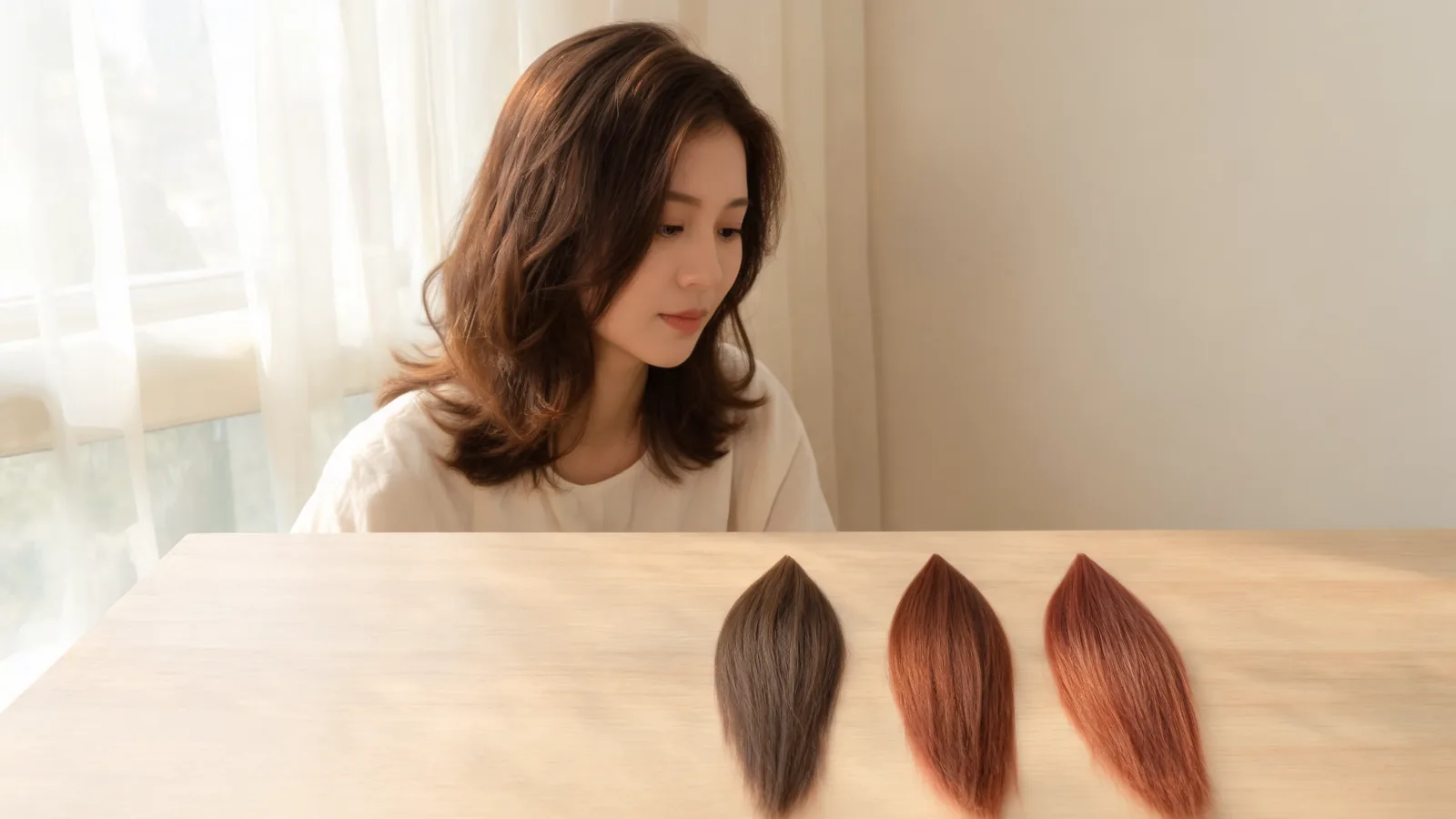
The Madison Reed virtual hair color changer lets you compare the brand's shades on an uploaded photo or live camera view. Before buying, save the shade name, code, and product range—not just a flattering screenshot. A separate AI hairstyle changer can help explore a color direction, but neither preview guarantees a dye result.
Last updated: October 13, 2026 · about 8 min read
This guide walks through finding the official tool, making a fair comparison, and keeping a reference you can discuss with a colorist. It is published by AIChangeHair, which offers its own color editor; it is not a Madison Reed endorsement or a report of a hands-on dye test. The cover is an illustrative color-planning scene, not a product result.
Where is the official Madison Reed try-on?
Start with Madison Reed's Virtual Hair Color Try-On. As of October 13, 2026, the official page calls the tool free, offers photo upload or live-camera use, and describes a split-screen slider for comparing shades. It says no app is required.
Use that official page rather than an old app listing or a third-party article with a similar button. A search result may describe an earlier interface, and a general color editor may have no connection to the brand's product catalog. Confirm the website address before uploading a portrait or entering account information.
The page also explains that using the try-on involves consent to image use. Read the consent presented in your session. If you would rather avoid live-camera access, choose the photo route if available. If you do not accept the terms, you can still browse shade information without treating an upload as mandatory for shopping.
How do I compare shades in three steps?
- Prepare one clear photo. Keep your entire hair outline visible, including the crown and ends. Use soft daylight, a simple background, and a photo without a beauty filter or an existing hair-color effect.
- Open a shade in the official tool. Follow its current consent and photo or camera prompts. Compare the original and preview before moving to another shade; check that hair, rather than your face or background, is the area changing.
- Record the buying details. Save the exact shade name and code, the product range, and a link to its product page. Keep the original image beside the preview so you can explain what changed and what you liked.
A useful reference pairs a picture with a product identity. “I like this warmer brown” is helpful; an unlabeled screenshot alone may not tell a colorist which shade you selected.
What should I keep consistent in the photo?
Use the same photograph for each saved comparison. A second selfie taken by a window can look quite different from one under a warm ceiling light, even before any virtual color is applied. Comparing those two pictures can turn a lighting preference into an apparent shade preference.
Make sure your natural root area is visible if you have regrowth. Avoid a crop that shows only the ends. Your roots and lengths may have different color histories, and a preview that looks uniform can hide that distinction. Keep a separate, unedited close-up for your consultation if the overview photo does not show it clearly.
A neutral background also helps you inspect the hair boundary. Look near your temples, along the part, and at loose strands. If the effect spills onto your skin or misses a large area of hair, improve the input photo before judging the shade. That is an image-quality problem, not a reason to conclude that a color looks wrong on you.
Which details belong beside a saved preview?
Keep a short note for each shade you are seriously considering. It should let you return to the same product later, even if the try-on page resets or your screenshot hides the selection controls.
| Detail to save | Why it matters | What to check before buying |
|---|---|---|
| Shade name and code | Identifies the selection more clearly than a picture | Both match the product page you open |
| Product range | Similar-looking colors can belong to different products | The selected item is the kind of color you intend to use |
| Original photo | Shows the starting appearance and lighting | Roots, lengths, and ends are visible |
| Preview image | Communicates the direction you prefer | Hair boundaries and facial features remain believable |
| Current hair history | Helps a colorist assess the starting point | Note previous color and lightening accurately |
| Question for the colorist | Turns a reference into a useful consultation | Ask about suitability rather than asking for a guaranteed screen match |
If the current interface offers a save option, use it and reopen the file to check it. Otherwise, a screenshot can preserve a visual reference where permitted, but keep the shade details separately. This guide does not assume that every browser version has an identical export button.
How do shade levels and tones affect the decision?
Madison Reed's hair color chart distinguishes level, meaning lightness or darkness, from tone, meaning the warm, cool, or neutral character. It also separates your natural starting color from color-treated lengths. Use those distinctions when comparing two similar-looking previews.
First ask whether you like the depth. Does the darker option create more contrast than you want? Does the lighter option feel too far from your current look? Then ask about tone. You may prefer a cooler brown at the same depth rather than needing to go lighter overall.
A general brown hair color changer can help explore that broad preference without attaching it to a product. A blonde hair color changer can similarly show whether a lighter direction appeals to you. Those are visual comparisons, not substitutes for a brand's shade code or application advice.
The chart says permanent color cannot lift hair that is already colored, and demi-permanent color deposits rather than lightens. A bright preview does not remove those practical limits. If your goal is substantially lighter than colored lengths, take your reference to a colorist before choosing a box solely because its virtual result looks convincing.
What does the preview fail to tell me?
A portrait preview shows appearance on a screen. It does not test how your hair responds to a formula, identify its condition, or prove how evenly a product will work across roots and ends. The edited image may also simplify highlights, gray strands, or differences in texture.
That is why the purchase decision needs more than “this looks good.” Read the selected product's current instructions and suitability information. Madison Reed's instructions guidance distinguishes a sensitivity test from a strand test. Follow the instructions supplied for your own product; a virtual preview performs neither test.
Do not use a successful screen comparison as permission to skip those steps. If your hair has a complicated color history or you are unsure which range fits your goal, ask the brand's color support or your colorist. Bring the original photograph, the preview, and your saved shade details so the conversation starts with the actual starting point.
What if the try-on will not open or looks patchy?
First return to the official page in a normal browser tab. An embedded browser inside a social app may handle camera prompts differently. The Madison Reed page itself advises opening in Safari for the best experience in the context where it displays that message. Follow the guidance relevant to your device rather than installing an unrelated app.
If live-camera access is blocked, check the browser permission prompt or try the upload route. If an uploaded image produces a poor hair boundary, replace it with an evenly lit photo before switching shades repeatedly. Large shadows, hair blending into the background, and cropped ends make comparison harder.
Where does AIChangeHair fit in this workflow?
Use the AI hair color changer when you want to explore a broad direction on your photo, such as a neutral brown or a softer copper. The studio offers color selections and descriptive editing requests. Check the account and credit requirements shown before generating.
Keep the two tasks distinct in your notes: one image explores an appearance; the Madison Reed selection identifies a candidate product. AIChangeHair does not certify an exact match to Madison Reed's shade catalog, and typing a shade name does not turn a generated image into a formula prediction.
Can I see how the official try-on works?
This short Madison Reed demonstration shows changing hair-color previews on a face; the current website's controls may look different.
Frequently asked questions
Is the Madison Reed virtual hair color changer free?
As of October 13, 2026, Madison Reed describes its official Virtual Hair Color Try-On as free and says no app is required. That description concerns the preview tool, not a free hair-color product or salon service.
Can I upload a photo instead of using my camera?
Yes. Madison Reed's official instructions describe both uploading a photo and trying shades with a live camera. Follow the image-consent prompt and use a clear photo that shows your current hair.
Will the shade look exactly like the preview after dyeing?
No. A screen preview helps you compare a visual direction; it cannot establish how a formula will behave on your natural roots, previously colored lengths, or gray hair. Check product suitability with a colorist and follow the current product instructions.
Can AIChangeHair find an exact Madison Reed shade match?
AIChangeHair can create a separate hair-color preview, but it does not certify a match to a Madison Reed shade or formula. Use Madison Reed's own shade name, code, product page, and color guidance for a buying decision.
Related guides
- Try the AI hairstyle changer →
- AI hair color changer
- Brown hair color preview
- Blonde hair color preview
- Change hair color in a photo
Compare a color direction before choosing a product
Keep your original photo, preferred preview, and shade details together. If you are still deciding on the overall look, explore it with the AI hairstyle changer, then check the selected product with its maker or your colorist.