
YouCam Video App: Hair Swap vs Hair Color Change
Compare YouCam Video hair color changes with haircut swaps, check the right app and controls, and test moving footage before saving.
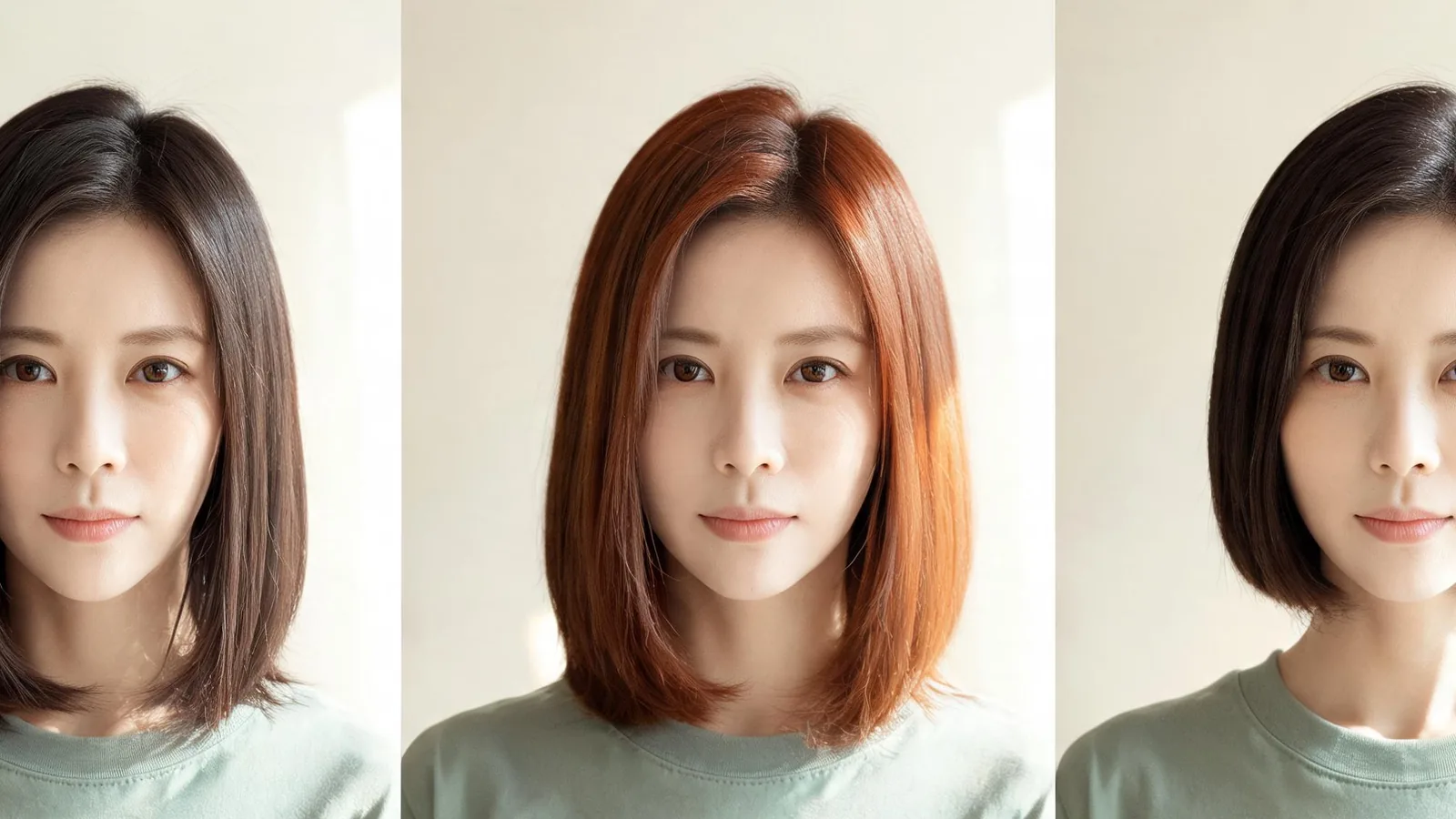
For the YouCam Video app, hair swap vs hair color change is a capability question: recoloring existing hair does not replace a haircut. Perfect Corp documents video hair-color editing; that alone does not confirm haircut replacement in moving footage. The AI hairstyle changer can supply a still-photo cut or shade reference, not an edited video.
Last updated: October 11, 2026 · ~7 min read
AIChangeHair publishes this guide and provides the photo tool linked below. The hero illustrates color versus shape changes; it is not a screenshot or a demonstration of YouCam Video output. App interfaces and feature access can vary by version, device, and region.
What is the difference between a hair swap and a color change?
A color edit keeps the existing hair silhouette and changes its shade. Brown hair becoming copper is a color task if the length, fringe, and outline stay the same. Highlights and two-tone effects also belong to this category.
A hairstyle swap changes structure: long hair becomes a bob, a fringe appears, curls replace straight lengths, or volume changes around the face. It needs to create or remove visible hair, not merely recolor what is already there.
In video, that structural change must remain consistent as the person moves. A believable still frame is useful, but the new fringe also needs to stay in place during a turn and avoid covering the eyes incorrectly. Do not infer that behavior from a photo example.
| Requested result | Type of edit | What would demonstrate it? |
|---|---|---|
| Brown hair becomes copper | Hair color | Hair-only shade change throughout a clip |
| Existing hair gains highlights | Hair color pattern | Streaks remain attached as the hair moves |
| Long hair becomes a bob | Haircut replacement | A shorter silhouette stays consistent in motion |
| New bangs appear | Hairstyle replacement | Fringe moves correctly around the forehead |
| Whole scene looks warmer | Video color adjustment | Skin, background, and hair shift together |
| Another person's face appears | Face swap | Identity changes rather than just hair |
Write a one-sentence requirement before opening the editor: “Keep the cut and change the color,” or “Keep the color and change the cut.” If the available tool only offers shades, it answers the first request.
What does YouCam Video officially document?
As of October 11, 2026, Perfect Corp's video hair-color feature page documents single-color, two-tone, and highlight options. Its workflow is to open Hair Colors, import a video, select a color, adjust coverage and intensity, then save.
That is support for a hair-specific recoloring workflow. The page does not give a dedicated sequence for replacing a haircut's length or silhouette. Its broader mention of hair “styles” is not enough to conclude that a bob or bangs can be swapped into your existing footage.
The current YouCam Video App Store listing describes a broader editor, including general color enhancement, generative editing, and character-related tools. Those names do not establish that a particular haircut edit will preserve your person, background, and movement. Check the exact control and its input requirements in your installed version.
This guide does not claim that every version lacks all possible hairstyle editing. It gives you a narrower decision: use the documented hair-color path for recoloring, and require a separate, successful test before relying on shape replacement.
A feature in YouCam Makeup, a developer API, or a different YouCam app is not automatically a feature in YouCam Video.
How do you check the right app before editing?
Confirm the full app name and developer in your store or installed-app information. “YouCam” alone is too broad. Then look at the editor you actually opened and what it asks you to upload.
For still-photo cuts, our YouCam Makeup hairstyle guide covers that separate workflow. A still-photo example helps explain a look, but it does not prove video support.
How do you test a video hair-color change in three steps?
- Prepare a short original clip. Use a copy with one person, visible hair, and a slow head turn. Keep the untouched file for comparison.
- Open the hair-color controls. Follow the Hair Colors workflow in your version, choose one shade, and adjust only the available hair-specific settings. Start with one uncomplicated color.
- Save and review the result. Watch the exported file at normal speed, then pause during turns, flyaway movement, and any hand crossing the hair. Check whether the face and background stayed unchanged.
This is a quality check you can perform on your own footage, not a claim that we tested the app on your device. Interface wording may differ from the official walkthrough. If you cannot locate a hair-specific control, stop and check the app's help rather than treating a whole-video adjustment as the same feature.
How can you tell whether only the hair changed?
Compare the original and edited versions at the same moment. Look at skin, eyebrows, clothing, and the background as well as the hair. If everything becomes warmer or more saturated, you may be seeing a general color adjustment.
Inspect the hairline, the part, and small strands against the background. Color can look convincing across the main mass of hair while spilling onto the forehead or leaving the edges untouched. A lower intensity may be worth trying, but do not assume it will solve a boundary problem.
Then watch the change over time. The shade should not pulse between two colors when lighting is steady. A highlight should not jump across the part during a small turn. Inspect frames where a hand or accessory crosses the hair, because those boundaries can be harder to separate.
| What you notice | Possible issue to investigate | Useful next check |
|---|---|---|
| Face and room change color too | Overall video adjustment | Compare skin and background with original |
| Forehead picks up the shade | Hair boundary spills | Review at lower intensity if available |
| Hair roots stay unedited | Incomplete coverage | Inspect the part and settings for coverage |
| Shade flickers on a turn | Unstable selection in motion | Try a slower, clearer test clip |
| Haircut outline never changes | You are using a color tool | Look for explicit shape-replacement support |
| Result only looks good in the editor | Export differs from preview | Reopen the saved file elsewhere |
What if you want shorter hair or new bangs in the video?
Do not spend time cycling through colors if your goal is a different haircut. First find a feature that explicitly accepts your required input and changes hair structure. Then test the smallest representative section before processing the full clip.
If a generative tool asks for a reference photo, determine whether it edits the existing video or creates a new one. A generated clip can be useful for creative content, but it may alter gestures, facial details, or the background. Choose it only if those changes fit your purpose.
For choosing a cut before filming, a still reference is often enough. Use a bob cut filter to compare length or a bangs filter to compare a fringe. These AIChangeHair pages edit photos, require sign-in and credits to generate, and do not transfer the result onto an existing video.
How do you compare shades without confusing them with haircut changes?
Hold the haircut and source portrait constant when you compare colors. If one option also adds curls or a shorter length, you are judging several changes at once. Make a separate comparison for the cut.
For a photo reference, the AI hair color changer lets you explore a shade before returning to your video task. Use a clear portrait in even light, keep the original, and describe the intended color while asking to retain the current cut.
A digital shade is an appearance reference, not a dye formula or a guarantee of a salon result. Show the color direction to a stylist along with your current hair. Similarly, a shade that looks convincing in a front-facing photo still needs a motion test in the video editor.
What should you check before paying for a finished clip?
Confirm that the specific tool you need is available on your device, that it accepts your file, and that you can save the result in the form you intend to use. Check any visible export restrictions, trial terms, or paid controls before starting a long edit.
Reopen the finished test outside the app. Listen for audio synchronization, watch the whole clip, and check the frame shape. If a watermark, crop, or save restriction matters for your project, resolve it before you process the full recording.
The decision is practical: a hair-color control fits recoloring existing footage; a haircut replacement needs separate support and a successful motion test; a photo preview fits choosing a look. Select the workflow that answers your request, then judge the actual saved output.
Frequently asked questions
Can YouCam Video swap my hairstyle in an existing video?
The official hair-color workflow documents recoloring hair in video. It does not by itself establish a dedicated haircut-replacement workflow. Check the exact feature in your installed version and test a short clip before relying on it.
Is changing hair color the same as a hair swap?
No. A color change alters the shade of existing hair. A haircut swap changes its shape, length, fringe, or volume. A face swap or overall video color adjustment is also a different edit.
Should I use YouCam Makeup or YouCam Video for hair editing?
Choose according to the input and edit. YouCam Video has a documented video hair-color workflow. YouCam Makeup has photo hairstyle try-on options, but those do not establish haircut replacement in an existing video.
Can AIChangeHair edit the hair in my video?
No. AIChangeHair works with a still photo. Use it to compare a cut or shade as a reference image; it does not apply that look to the moving frames of your original clip.
Related guides
Try the AI hairstyle changer →
- AI hair color changer
- Bob cut filter: compare haircut shape
- YouCam Makeup photo hairstyle guide
- Hair color changer vs hairstyle changer
Choose your reference look
If your next decision is a cut or shade rather than a finished video, start with one clear portrait in the AI hairstyle changer.